CHAPTER 01Design your rig
Create your EVO2, save your progress, then complete the order form. This guide follows the Designer from your first color choice to submission for Firebird review.
01Choose your leg-pad configuration
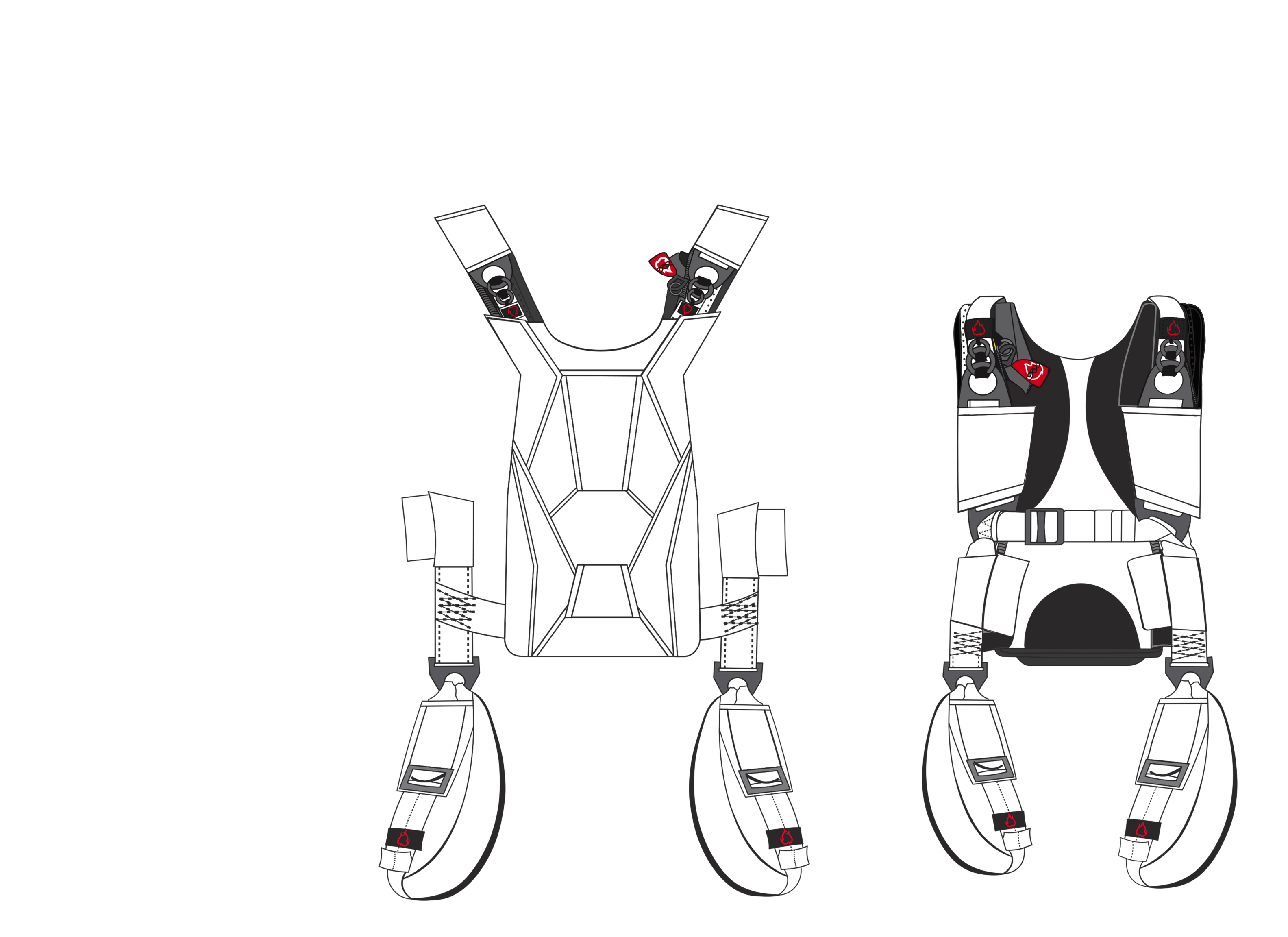
Use Leg Pads Configuration above the rig preview, beside Both / Back / Front. The EVO2 Designer always opens with 2-piece leg pads selected. Select 1-piece leg pads to change models. Opening a saved design link restores its saved configuration.
The graphic updates the leg pads and lateral assemblies while keeping your chosen colors, patterns and embroidery. Laterals use the selected Webbing color or pattern.
Your selection carries into the order, saved design and production report. The 2-piece configuration includes T-Junction for $75 total; the included 1-piece configuration has no T-Junction. Change the configuration in EXTRA OPTIONS & ADD-ONS to update the graphic, totals and production details together.
02Choose colors and patterns
Open Container colors. Select a part from the list or click it on the rig, then choose an available color or Cordura pattern. Use Both, Back and Front to check the complete design.
For a starting point, open Pre-Designed Rigs and select a design. Review every part before making it your own.
03Add embroidery
Open Embroideries, choose a supported location, then select an included logo or Custom Logo. Choose the available thread colors. Firebird uses Madeira Polyneon 40 for the embroidery palette.
Flap 3 logos with angle controls rotate around the flap center. Check the logo in the rig preview after each adjustment. Available logos and controls depend on the selected location.
04Prepare your custom logo
Upload a JPG, JPEG, PNG or PDF. Keep the original file available for your order. A clear, high-resolution image with a solid background is easiest to prepare.
Use Logo size to resize and Logo angle to rotate. The ±90° controls make quarter turns; Reset size and Reset angle restore those settings. Artwork outside the flap is cropped, so check every edge.
For cleanup, open Background removal, select the Background color and adjust Cleanup strength. Choose Remove background or Update removal. Include enclosed areas also removes matching colors inside the logo; check small lettering and fine details. Restore original reverses the cleanup.
Review the result at its final size. Custom embroidery and digitizing are quoted separately for Firebird approval.
CHAPTER 02Save and choose your configuration
Save a reusable link before leaving the Designer. When the design is ready, open the order form and work through its numbered sections.
05Save now and continue later
Open Save / My designs. Add a Design name if useful, then choose Save new link. Copy or bookmark the link so you can reopen it on another device.
My saved designs lists links remembered in this browser. Saved on this device is the local working draft; use a saved link for a portable copy. After further edits, save a new link to capture the updated design.
Each saved link expires 30 days after it is created. Opening it does not extend that date. Saving a design does not place an order.
06Enter your personal information
Choose Review & order. In CUSTOMER INFORMATION, enter your full name, email, phone and complete address. Check spelling and contact details before continuing.
07Find your container size
Open Find my EVO2 size and Open fit guide. Enter the main canopy type and size, plus the reserve type and size. Use the combined result, then select Use [size] to apply it to your order.
Review the main canopy, reserve and AAD details in the form. If your combination is not listed, choose Request compatibility review or the container option marked Firebird compatibility review needed. Firebird confirms compatibility before production.
08Select your package
Compare the package choices and their current prices in the form. Select the package that matches the equipment you want included. Review the component details after changing packages.
Package equipment| Package | Included equipment |
|---|
| P1 | Harness and container |
|---|
| P2 | Harness and container + RUSH reserve |
|---|
| P3 | Harness and container + RUSH reserve + AAD |
|---|
| P4 | Harness and container + RUSH reserve + AAD + main canopy |
|---|
Measure, review and place your order
Your order combines the visual design with equipment, fit and option details. Check both before submitting.
09Enter your measurements
In MEASUREMENTS, select metric or imperial units. Open Firebird measuring guide and enter the requested height, weight, chest, torso, laterals and thigh measurements. Use measured values rather than clothing sizes.
The integrated calculator uses your entries to calculate harness values, including MLW, laterals and leg-pad values. Review the production summary after changing measurements or leg-pad options. Firebird assigns the serial number and yoke size; the calculator still needs your body measurements as input.
10Choose included options and paid add-ons
Review INCLUDED OPTIONS, then EXTRA OPTIONS & ADD-ONS. Check each selection, its extra charge and any additional details requested.
In INCLUDED OPTIONS, optional text embroidery is available only for pillow handles. Choose Pillow for the reserve ripcord to display its embroidery option; the EVO2 cutaway is supplied as a pillow. Enable Add text for each handle separately, enter the exact text and embroidery color, and add a font preference or notes if needed. Each embroidered pillow adds $50. Switching away from Pillow hides the option and removes its charge. The text, thread color, font and notes are retained in saved designs and order reports.
Split left/right colors and patterns are available for leg pads, Flap 6 sidewalls, Flap 8 main riser covers and ring covers. Each selected part pair adds $75. Enable the split option, select Left or Right, and choose each side’s color or pattern. Left and right are as worn.
Confirm that all selected split parts and other paid options appear in the order total.
11Review the complete order
Check DESIGN YOUR EVO in both front and back views. Confirm all colors, patterns, logo positions, sizes and rotations. Then review your contact information, canopy combination, container size, package, measurements, included options and add-ons.
Use COMMENTS for any remaining instructions. Keep original custom artwork available and re-upload it if the form requests it. Review the total and any items that require a separate Firebird quote.
For financing, use the Terrace Finance button beside the final total. It opens the application in a new tab while your Firebird order stays open. Complete and submit your Firebird order separately.
12Submit directly or add to your cart
Read the linked terms and the production/payment acknowledgment. Accept the acknowledgment when the order is complete.
Prepare order PDF downloads a review copy. Choose Submit directly to Firebird to submit this form now, or Add to cart · submit later to combine it with other completed forms. Adding to the cart does not submit an order.
Submission sends the order for Firebird verification. Production begins after Firebird validates it and confirms payment or approved credit. Keep every confirmation and order PDF.
CHAPTER 04Configure your gearbag
Order a gearbag on its own, or add one to your EVO2 order. Both use the same saved panel and embroidery specifications.
13Add your gearbag
In EXTRA OPTIONS & ADD-ONS, select Gear Bag under Accessories. The Design your gearbag button appears directly below it. Select EVO Sports or EVO ST/Rental ($200 each), then choose the colors for Flaps 1–4 and the back panel.
Every color menu shows the color name and a sample. Select a Firebird logo for Flap 1, Flap 3 and the back, or choose No embroidery. The embroidery menus use the same solid color palette as the EVO2 designer.
The approved outline stays unfilled so its seams and panel references remain clear. Small logo previews appear in the menus. Colors and logo selections are recorded separately for production.
Standard Firebird logos are included. For Custom logo, upload a PDF, PNG or JPG at each selected location. Final custom-logo pricing is confirmed after artwork review. Re-upload source files after reopening a saved draft.
Gearbags are $200 with EVO2 and EVO ST system orders, plus custom embroidery or digitizing if applicable. The EVOtd form offers the same designer at $200 per bag with a system order; a standalone EVO TD gearbag is $250. Standard Firebird logos are included.
14Save, submit and production records
Choose Save design & return to order to attach your design and return to the same Accessories position. The row shows Design saved; choose Edit gearbag design to revise it. Cancel leaves the previously saved design unchanged.
Saved EVO2 drafts retain the gearbag design. Deselecting excludes it from the order and reports; reselecting restores it. Its production page follows the final container drawing, and the customer record includes its specifications.
For a separate order, open the Gearbag form in Orders or Power Seller Resources. Configure the bag, enter your contact details and review the itemized request. Standard logos are included; custom artwork, taxes and shipping are confirmed before production.
Gearbags are $200 with EVO2 and EVO ST system orders, plus custom embroidery or digitizing if applicable. The EVOtd form offers the same designer at $200 per bag with a system order; a standalone EVO TD gearbag is $250. Standard Firebird logos are included.
CHAPTER 05One cart for all your orders
Combine EVO2, EVO ST, tandem, canopy, spare-part, stock, gearbag and repair forms in one cart. Each order keeps its own specifications and paperwork.
15Complete a form and add it to the cart
At the review step, check your details, selections, required files and acknowledgment. Choose Add to cart · submit later. The cart saves the completed form and original files in this browser. No order is sent at this stage.
To change a cart order, remove it and complete a corrected form before adding it again. Save your design link separately if you want to revisit a custom design.
16Reuse your details
Open another order form from the cart. Your name, email, phone and shipping address are prefilled. Use the same customer and pricing account for the combined cart. Each form still requires its own product, sizing, artwork and review.
Contact details carry only while the cart contains orders. Emptying it or successfully submitting every order clears its temporary details and files. Refreshing keeps the cart when browser storage is available; if the cart is no longer there, enter your details again.
17Review the combined total
Open Your cart from any order form. Review one line per order, open its details, and download the consolidated summary with individual paperwork.
The grand total combines known prices in USD. Quote-only items, taxes and shipping are additional. This summary is not the final tax invoice; Firebird confirms the invoice after review.
18Submit everything together
Review all orders and choose Submit all orders. Wait for confirmation and keep every order reference. Download your summary and paperwork before leaving the confirmation page.
If a submission fails, the cart keeps unsent forms and remembers saved orders. Retry the same cart; do not rebuild orders already received. Your order history and Firebird production checks remain separate for each item.

 EVO2 CUSTOM DESIGNER